.jpeg)
.jpeg)
.jpeg)
.jpeg)
.jpeg)
.jpeg)
.jpeg)
.jpeg)
.jpeg)
.jpeg)
.jpeg)
 Flight Sim Deck
About Aircraft Export
The Aircraft Export feature allows you to capture your aircraft's instrument screens (PFD, MFD, etc.) directly from X-Plane and submit them for inclusion in Flight Sim Deck's aircraft database.
Prerequisites
- Flight Sim Deck Server installed and running on your PC
- X-Plane 11 or 12 installed and running
- The FSD bridge plugin installed in X-Plane
- Debug Mode enabled in the server settings
Step-by-Step Guide
Open the Flight Sim Deck Server on your PC. Go to Settings, select the Log tab, and check the "Debug Mode" checkbox. This unlocks the panel export features required for aircraft capture.
Start X-Plane and load the aircraft you want to export. Make sure the aircraft is fully powered up and in a hot & ready state:
- Engines running
- All avionics and screens turned on
- All instrument displays (PFD, MFD, ECAM, etc.) in their normal operating state
Switch to the Flight Sim Deck Server window on your PC. Click the "View Panels" button.
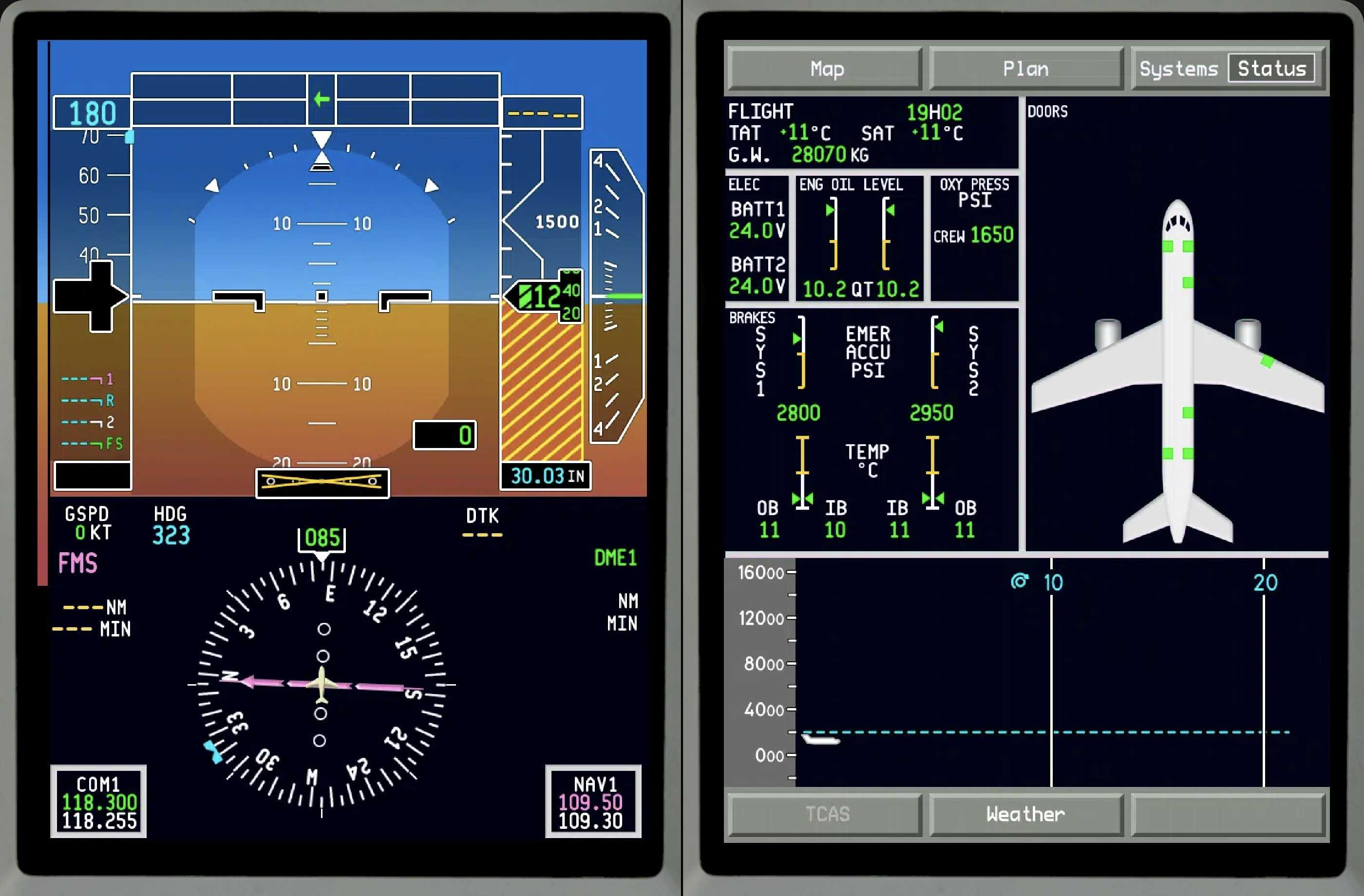
In the View Panels window, click the "Export Aircraft" button. The server will capture screenshots of all detected instrument panels (PFD, MFD, etc.) from the currently loaded aircraft and package them into a ZIP file.
Once the export is complete, you have two options to submit the aircraft data:
- Automatic upload (FTP): The server will ask if you want to send the ZIP file automatically via FTP. Accept to upload it directly.
- Manual submission: If you prefer, you can locate the exported ZIP file and send it to us manually by email.
Troubleshooting
- Make sure the "Debug Mode" checkbox is checked in Settings > Log tab
- The button should appear immediately after enabling Debug Mode
- Make sure the aircraft is fully powered (hot start, not cold & dark)
- Verify all screens and avionics are turned on in X-Plane
- Wait a few seconds after all screens are displaying before exporting
- Check your internet connection
- You can always submit the ZIP file manually instead